Stimulus & Gaze
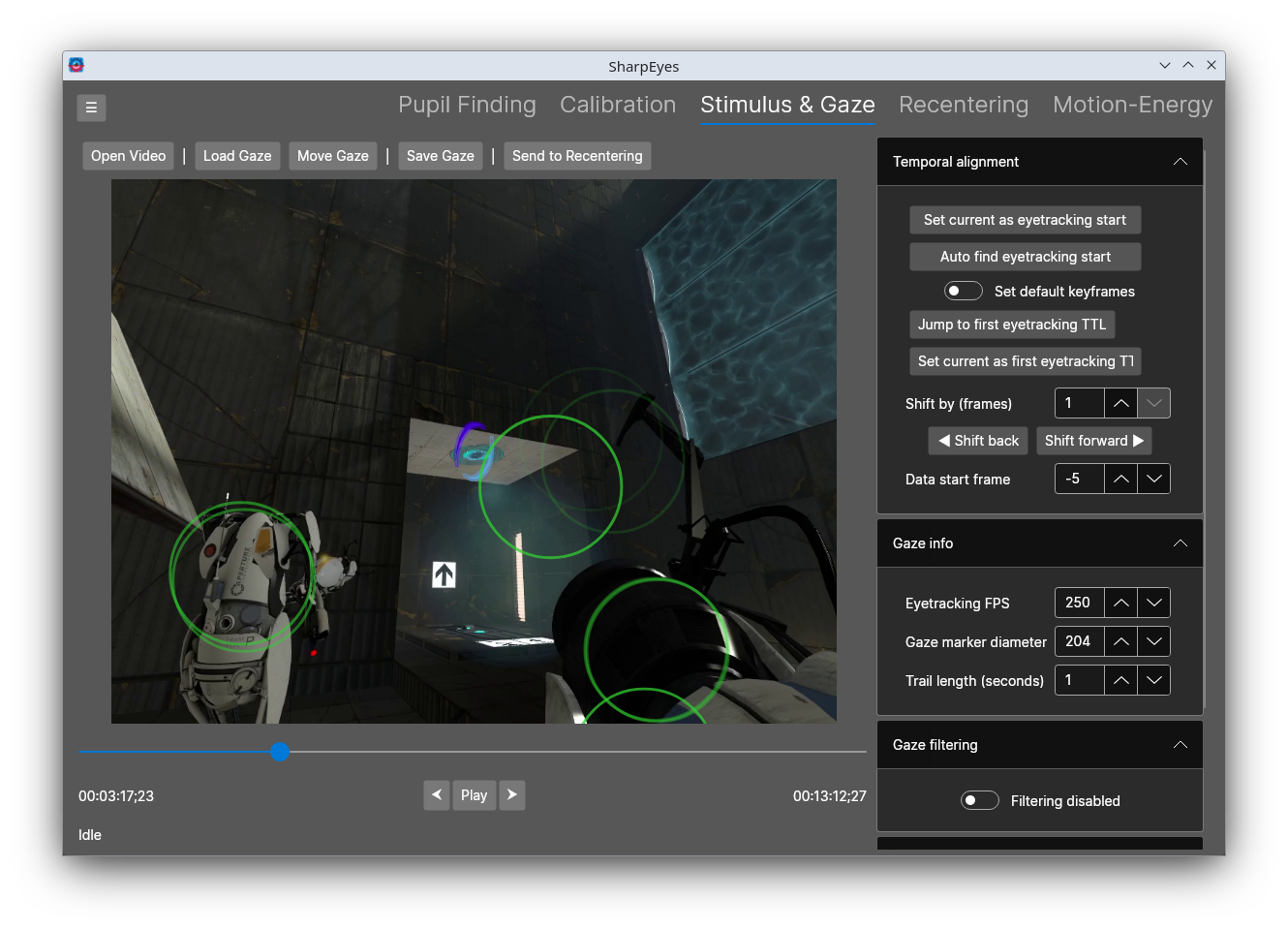
The Stimulus & Gaze tab lets you view the gaze location overlaid on the stimulus video, filter the gaze traces to smooth them, and manually edit individual gaze positions.
Sharpeyes can read the following file formats for the gaze locations:
- numpy arrays with at least two columns, where column 0 is X and column 2 is Y. Additional columns will be ignored but kept.
- CSV files following the same format.
- Eyelink EDF files, if the Eyelink EDFAPI shared library is available. SharpEyes will look for it in your system path by default, or you can specify its location in General Settings. This will not be an option if the library is not found.
- Converted Eyelink files - the text file outputs from converted EDFs, either with a
.txtor.ascextension.
Note: if you read a numpy or CSV file, you'll need to manually set the Eyetracking FPS. The FPS will be set automatically if you read an Eyelink data file.
Workflow
- Open the stimulus video with File → Load Video.
- Load gaze position data with File → Load gaze, or send it over from the Calibration tab. Gaze data is stored as numpy arrays saved from the Calibration step.
- Set the eyetracking frame rate in the right control panel (default is 60 fps).
- Synchronize gaze data with the video by identifying when eyetracking began. Use Auto find data start or select the start frame manually.
- Verify that timing aligns correctly, particularly during calibration sequences.
- Play through the video to review the gaze overlay, and edit the gaze where necessary.
- Once it it's been checked over, send the data over to the Recentering tab
Temporal alignment
The eyetracking data and the stimulus video are recorded separately and must be aligned. When you load a file, SharpEyes assumes that the eyetracking data starts with the video. The Temporal alignment section in the right panel provides several ways to modify this alignment.
- Set current as eyetracking start — marks the current video frame as the frame where eyetracking began.
- Auto find eyetracking start — attempts to detect the start automatically - this is specific to the driving project, where we burn a TTL marker into the bottom right.
- Jump to first eyetracking TTL / Set current as first eyetracking TTL — if TTL pulse data is available, these buttons let you align using the first TTL signal. The green indicator in the bottom-left corner of the video lights up when the current frame has a TTL.
- Shift back / Shift forward — nudge the eyetracking data by a set number of frames. The shift amount is set by the Shift by (frames) picker.
- Data start frame — set the alignment frame directly by number.
- Set default keyframes — when enabled, default keyframes are added at the data start. Again, this is specific to the driving project.
Gaze info
This provides some visualization options for the gaze.
| Control | Description |
|---|---|
| Eyetracking FPS | Frame rate of the eyetracking recording (default 60) |
| Gaze marker diameter | Size of the gaze circle overlaid on the video |
| Trail length (seconds) | How long the gaze trail behind the current position is shown |
Gaze filtering
Filtering is applied on top of the raw gaze data and can be toggled on or off without losing the original data.
Median filter
A median filter smooths the gaze trace by replacing each sample with the median of a window of surrounding frames. Set the Window size (frames) to control the smoothing strength. Enable Filter pupil size to apply the same filter to the pupil radius.
Outlier removal
When Remove outliers is enabled, samples that fall outside a percentile threshold are removed. Thresholds are set independently for X position, Y position, and pupil radius.
Editing gaze positions
Pause playback and select Move gaze to edit a position. Adjusting a frame makes it a keyframe. The delta applied to that frame is propagated forward to every successive frame, and interpolated backward to the previous keyframe, producing smooth transitions rather than abrupt shifts.
Save edited gaze data with File → Save Gaze.
Controls
| Control | Action |
|---|---|
| Spacebar | Toggle playback |
| Mouse scroll | Frame-by-frame navigation |
| ❮❮ / ❯❯ | Jump between keyframes |
| ⮜ / ⮞ | Single-frame scrubbing |